
Agent on the machine
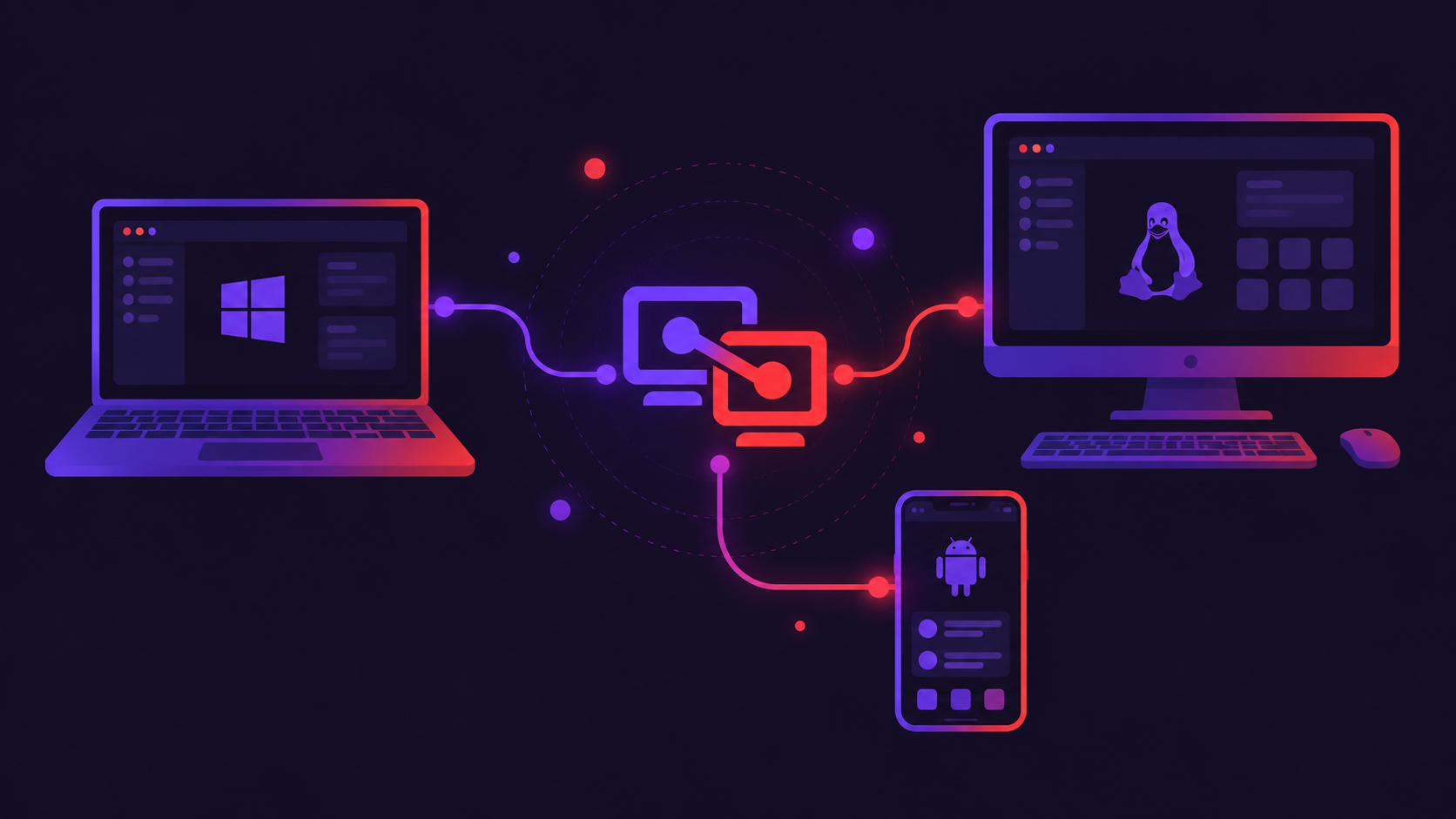
Install a small MCP Desk agent on the computer whose MCP tools you want AI clients to use. Windows and Linux are ready. macOS and Android are not downloadable yet.
Install a small agent on the machine you want AI tools to reach. The hub keeps the registry and the stable 9-digit code. After you claim that desk, Connect on the dashboard gives your client a short-lived ticket for the gateway, which is the MCP path. That Connect does not ask the machine to approve again.
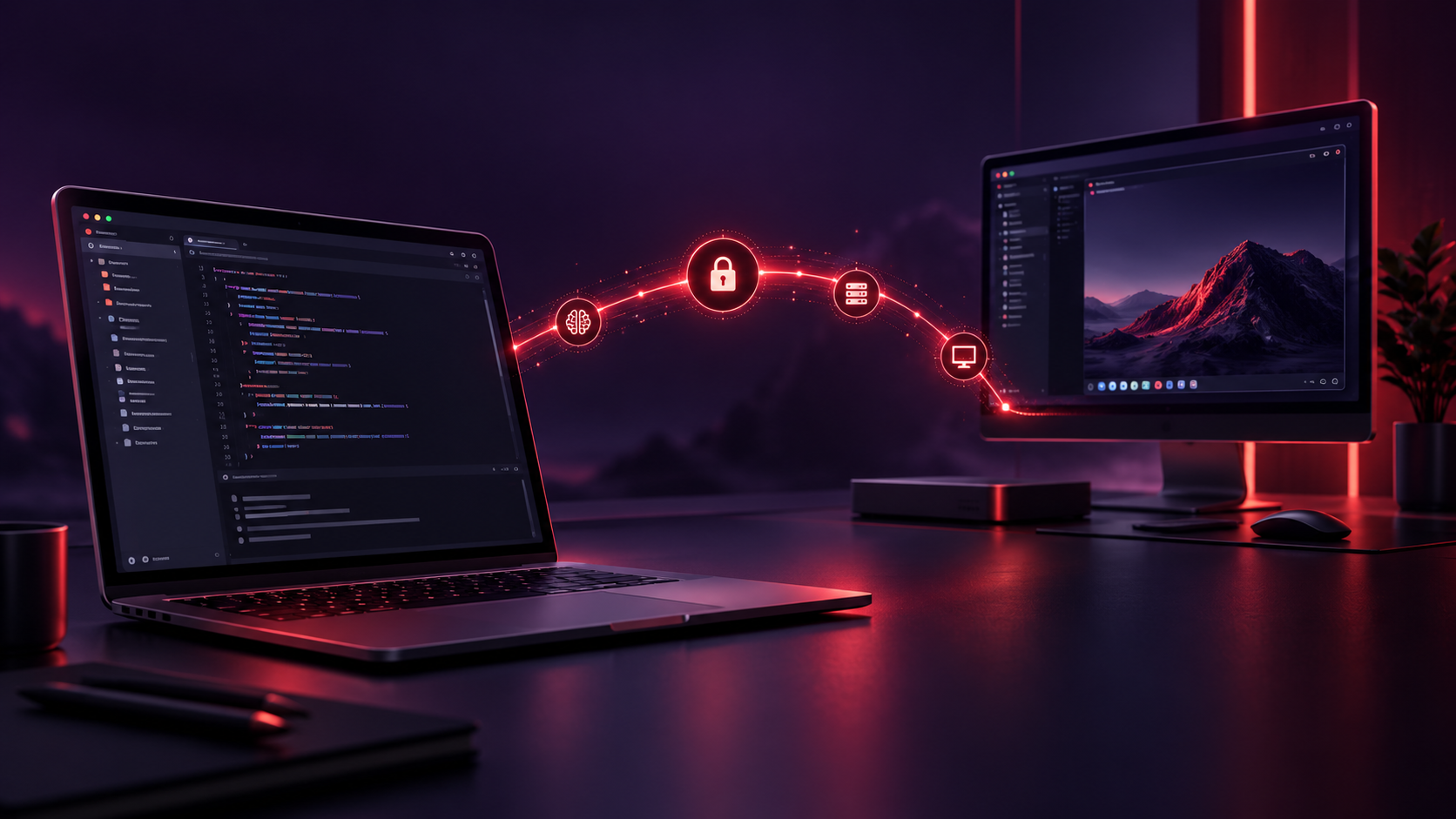
MCP Desk is remote access for Model Context Protocol tools — the same idea as AnyDesk or RustDesk, but for AI clients talking to MCP on a machine you control.
Install a small MCP Desk agent on the computer whose MCP tools you want AI clients to use. Windows and Linux are ready. macOS and Android are not downloadable yet.
The agent stays reachable through hub.mcpdesk.io. Clients and operators find a machine by its code — not by hunting down IPs or wiring ad-hoc tunnels.
Each agent gets a stable, shareable 9-digit code
(xxx xxx xxx), assigned once by the hub and tied to
a key that never leaves the machine. Share the code when you want someone
— or an AI client — to request access.
The hub is the registry. The gateway is the MCP path. A claimed owner’s Connect does not ask the machine to approve again.
Put the MCP Desk agent on the machine you want AI tools to reach. It registers with the central hub and stays ready for connection requests.
The agent shows a stable 9-digit code (and a short-lived OTP when someone requests access). That code is what you share — like an AnyDesk address for MCP.
Sign up or log in and claim that code on the dashboard. The desk sends the proof. Someone who is not the owner still uses an invite, and the machine shows Approve or Deny.
Copy the address https://mcp.mcpdesk.io/{userId-guid}
and its bearer from the dashboard. Leave them in the client with
Authorization: Bearer. Then send
connect device plus the 9-digit code and the one-time code,
or send the 9-digit code and the one-time code when asked.
Install MCP Desk on Windows or Linux, leave it Online, and read the 9-digit code on that machine. macOS and Android are not downloadable yet.
Sign up or log in, then claim that code on the dashboard. The desk sends the proof. This site never asks you to paste token.txt or agent_token.
Copy the client address and bearer from the dashboard once. In the client, connect a desk with the 9-digit code and the one-time code. Leave that address in place.
After install: stable code, short-lived OTP, Approve/Deny on each request, and an optional always-on service.
After install the agent shows your stable code and a short-lived OTP. Share both to request access — the code alone isn’t enough.
Incoming connect requests pop Approve or Deny on the machine (who + from where). No tunnel until you approve.
Optional Windows service / systemd install keeps the agent
online after reboot. Each peer still needs Approve/Deny —
or opt-in unattended via an ed25519
authorized_keys (or public.key) next
to the agent binary (see docs).
The public hub
(https://hub.mcpdesk.io) is built
in — no setup. The agent stays listed while online so clients
can request a connection by code.
The hub is the registry: agents register and you claim a desk by its code. Public hub: https://hub.mcpdesk.io. The gateway is the MCP path.
mcp.mcpdesk.io is the MCP path from your client to
the claimed desk.
Windows and Linux builds are available now. Double-click or run the agent, leave it Online, and read the 9-digit code. macOS and Android are not downloadable yet. Quick start → The next step is to sign up, claim the desk, and copy a snippet from the dashboard.